 Zastre, Kent & Wilson
← All help pages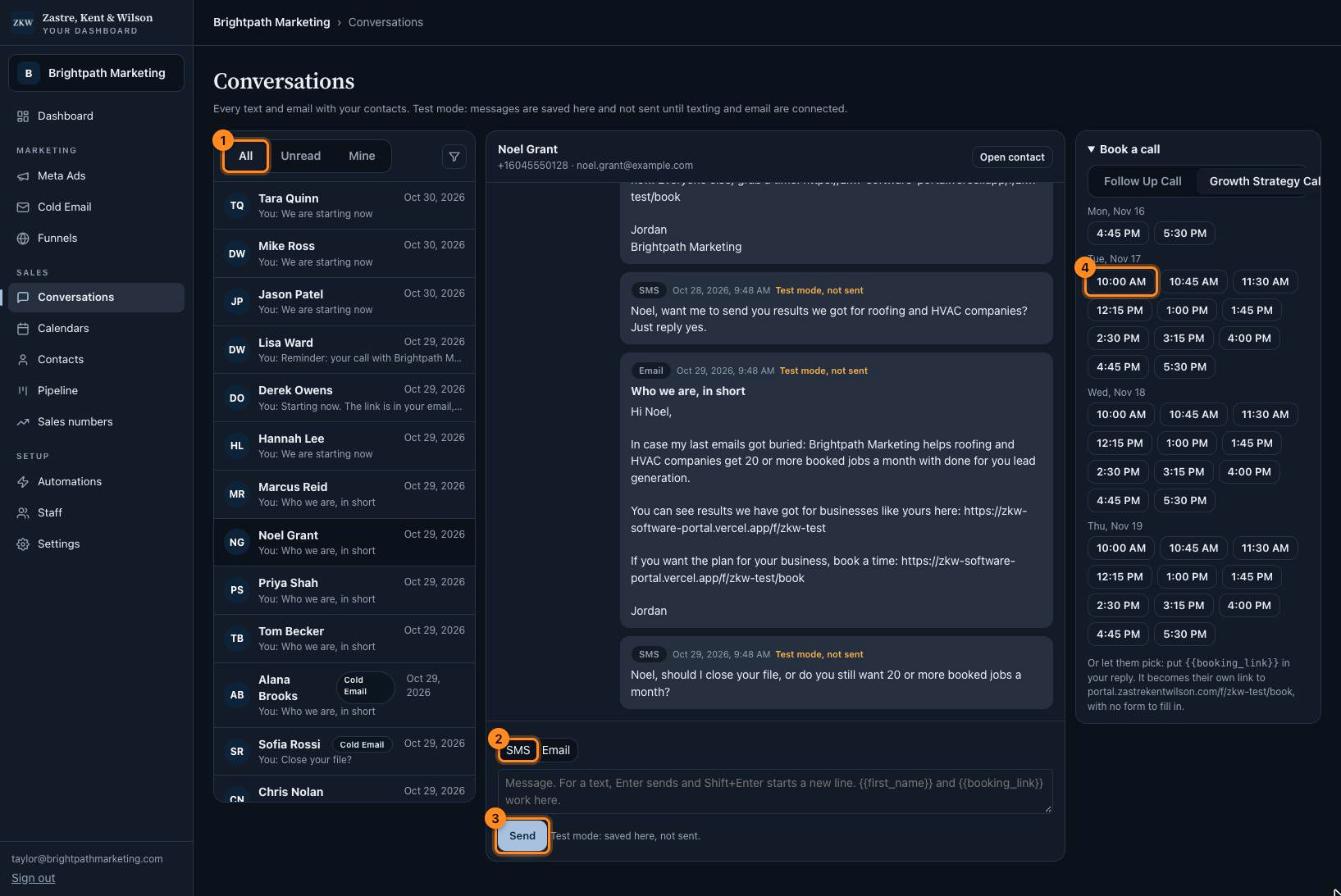
Click the picture to see it bigger. The names and numbers in it are made up.
Conversations
Text and email your leads, and book their call.
What is this page?
Every text and email with your leads is here, like the messages app on your phone.
The list of people is on the left. The chat is in the middle. Times to book a call are on the right.
Answer a lead
- Pick All, Unread (new messages) or Mine (only your leads).
- Choose SMS to send a text, or Email to send an email.
- Press Send.
- Click a time to book their call right away.
- Click a person in the list on the left.
- Read what they wrote in the middle.
- Choose SMS or Email under the chat.
- Type your message in the box.
- Press Send. For a text, you can also press Enter. Press Shift and Enter together to start a new line.
Tip: Type {{first_name}} and it turns into the person's first name. Type {{booking_link}} and it becomes a link where they can pick their own time.
Book a call from the chat
- Look at the "Book a call" box on the right.
- If there is more than one calendar, pick the right one at the top.
- Click a time. The call is booked, and the lead gets a message about it.
What the little labels mean
- Sent
- Your message left.
- Delivered
- It reached their phone or inbox.
- Failed
- It did not go through. Check the phone number or email.
- Test mode, not sent
- Your texting or email is not switched on yet, so the message was saved but not sent. This changes once setup is done.
- Cold email
- This person replied to a cold email.