 Zastre, Kent & Wilson
Calendars
See your booked calls, book one by hand, and say how each call went.
What is this page?
It shows every sales call that is booked. Each colored block is one call.
Move around the calendar
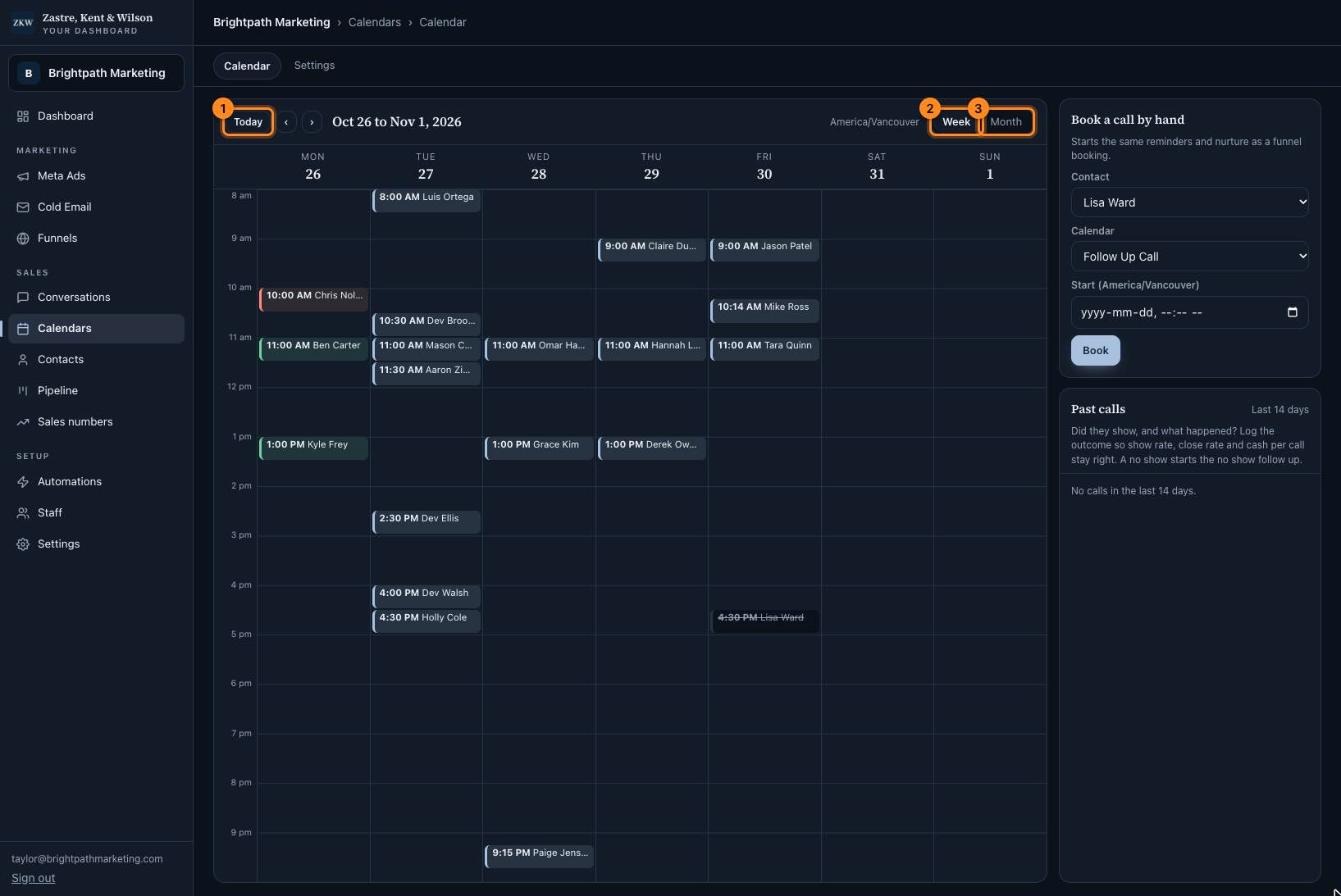
- Today jumps back to this week. The ‹ and › arrows go back or forward.
- Week shows one week.
- Month shows the whole month.
Tip: Need to book a call yourself? Use "Book a call by hand" on the right. Pick the person, the calendar and the time, then press Book.
After a call: say what happened
This step matters a lot. It is how your show rate, close rate and cash numbers stay right.
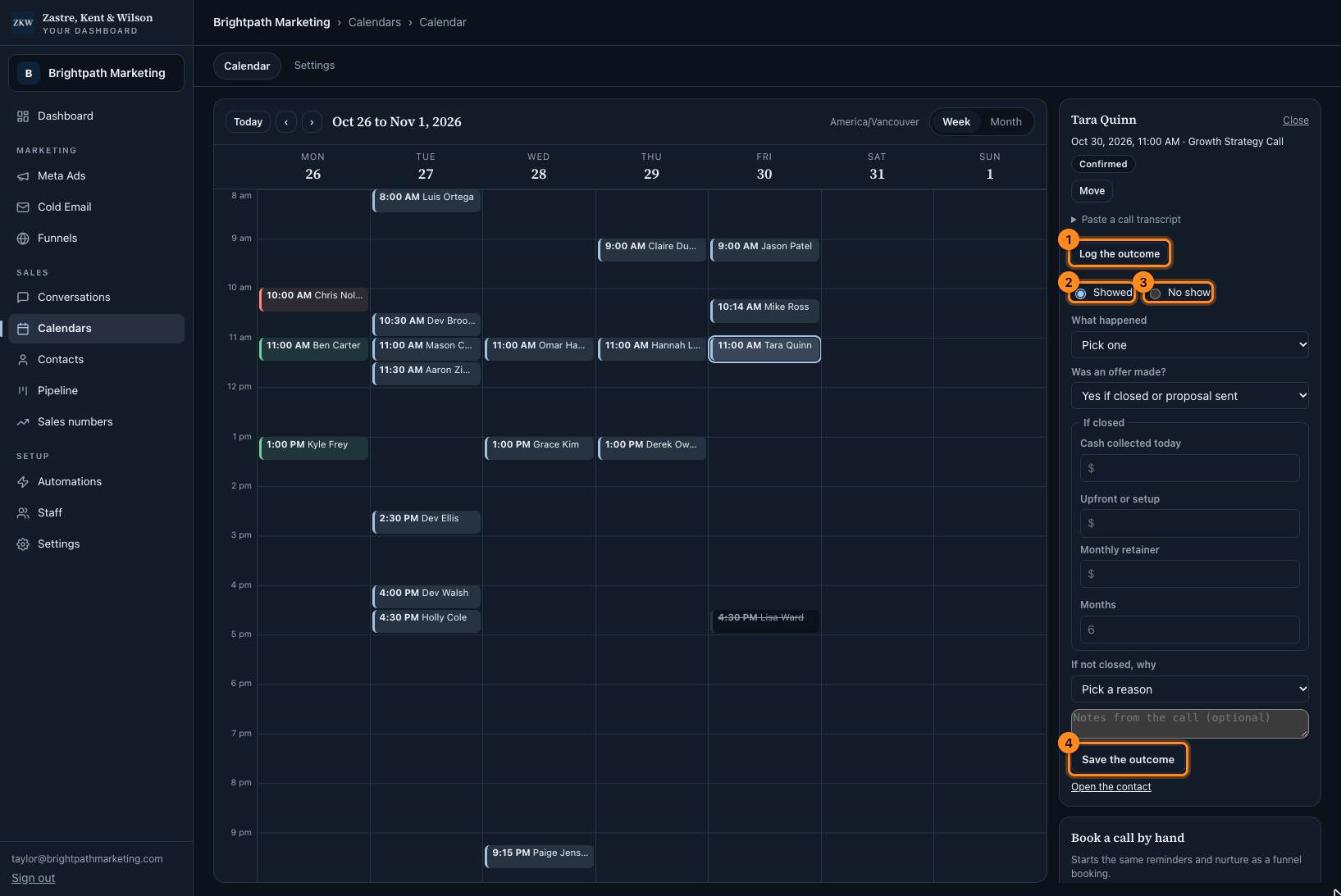
- Click a call on the calendar, then press Log the outcome.
- Pick Showed if they came to the call.
- Pick No show if they did not come. We will follow up with them for you.
- Fill in what happened and the money, then press Save the outcome.
- Click the call on the calendar.
- Press "Log the outcome".
- Pick "Showed" or "No show".
- Under "What happened", pick Closed, Proposal sent, Follow up or Not closed.
- If they bought, type the cash you collected today and the monthly amount.
- Press "Save the outcome".
Tip: Recorded the call? Open "Paste a call transcript", paste the words from the call, and press "Read it". It fills in the form for you. Check it, then save.
Change or cancel a call
- Click the call on the calendar.
- Press "Move" to pick a new time, then "Save". Or press "Cancel" to cancel it.
Calendar settings (owners)
Each person connects their own Google Calendar. Then leads only see times when that person is free, and the call shows up on their calendar with a Google Meet link.
If the person is not you, copy their link and send it to them. They connect it themselves.
Lower down you can change each calendar: how long a call is, the gap between calls, and the hours for each day. Press "Save calendar" when you are done.
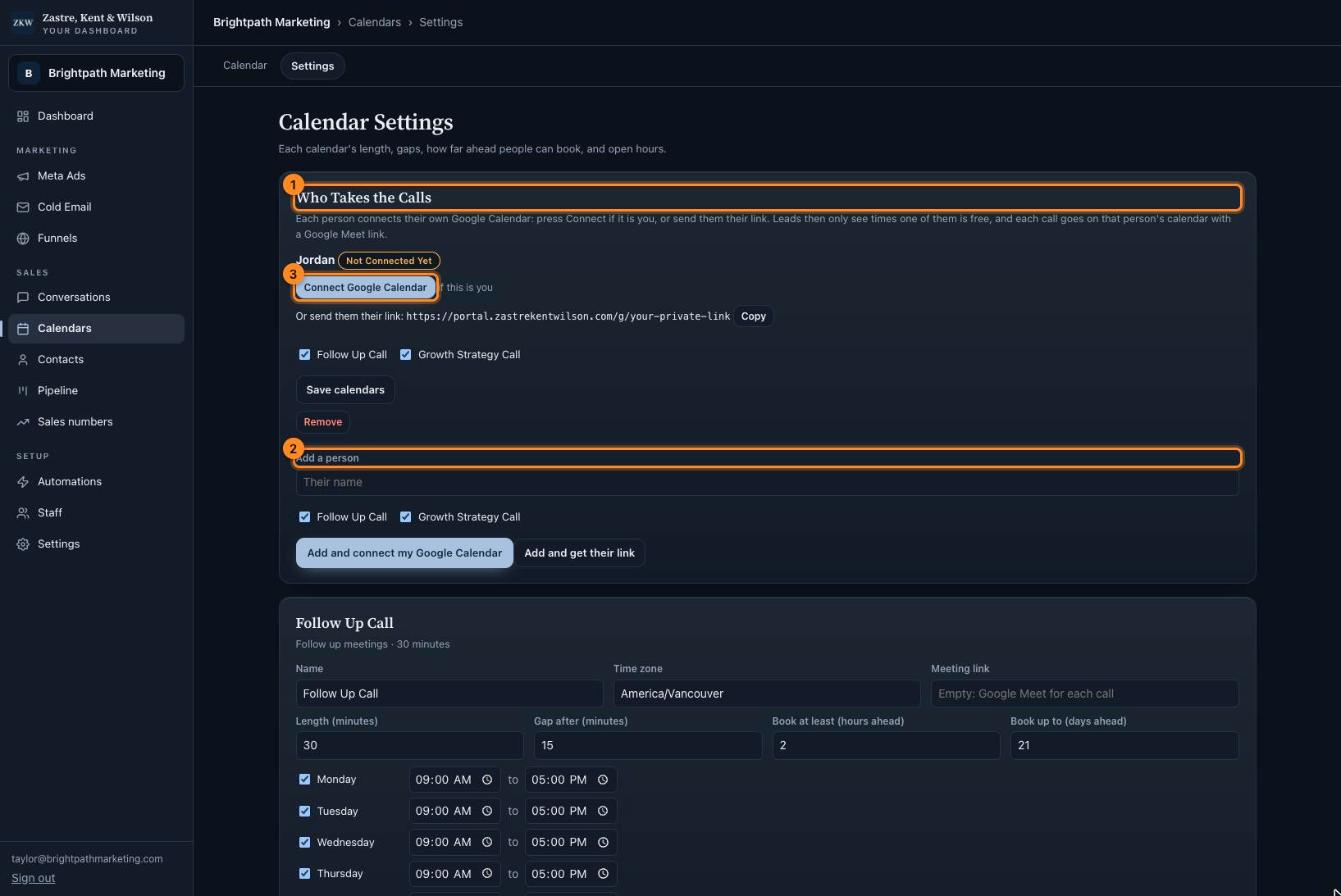
- Who takes the calls. Everyone who runs sales calls is listed here.
- Add a person who takes calls.
- Connect Google Calendar. Press this if this person is you.